Creating Your First Meal Plan
Learn how to create a weekly meal plan using the drag-and-drop calendar interface.
Written By Michelle Mayes
Last updated 10 months ago
What You'll Learn
How to navigate the meal plan calendar
How to add recipes to meal slots
How to use drag-and-drop to plan meals
How to customize meal types
Tips for effective meal planning
Quick Start: Plan Your Week in 5 Minutes
Go to Meal Plans in the navigation
You'll see a weekly calendar view
Click any meal slot (Breakfast, Lunch, Dinner, Snack)
Select a recipe from your collection
Repeat for other meals
Your plan is automatically saved
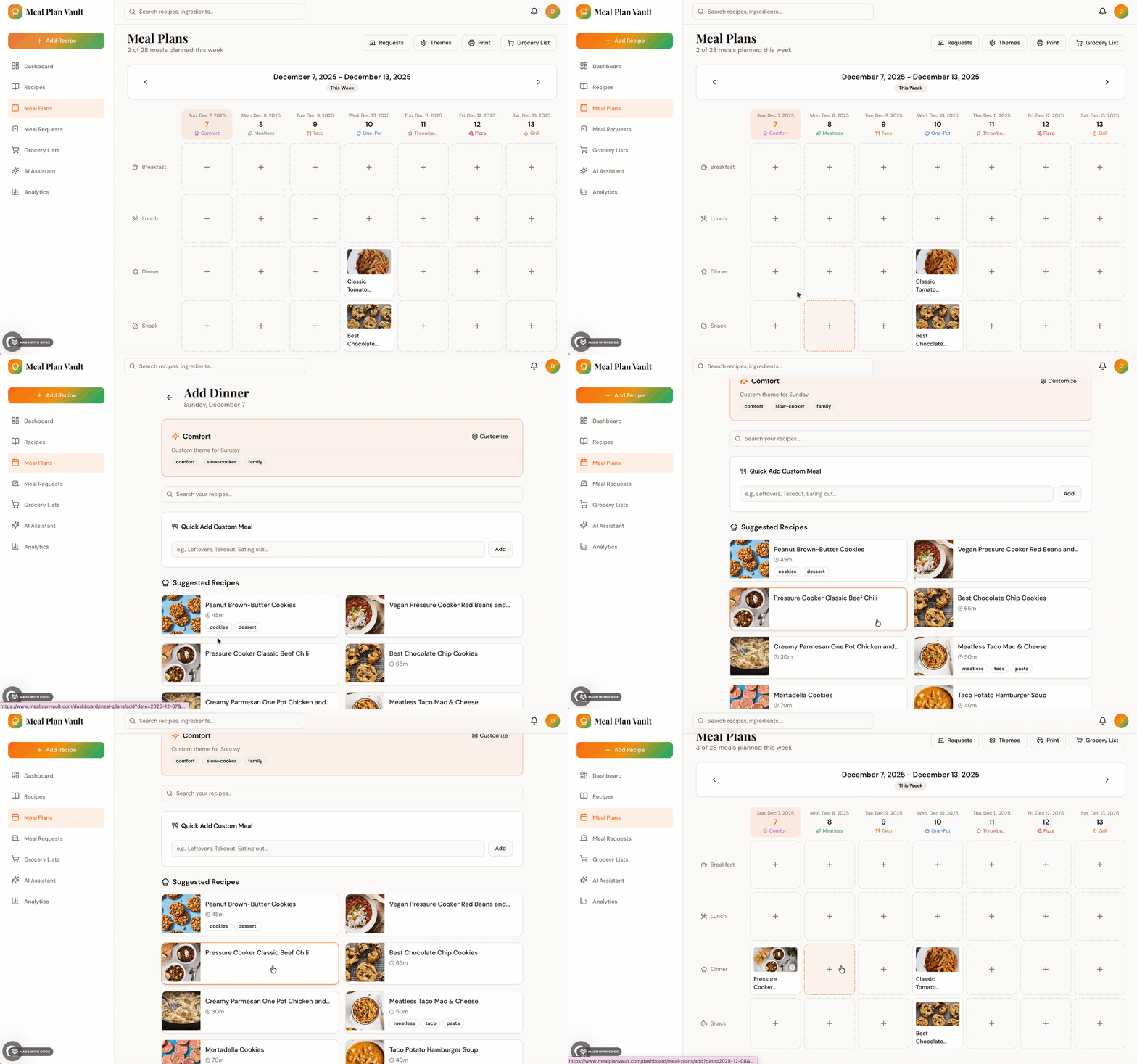
Understanding the Meal Plan Calendar
Calendar View
The meal plan shows:
Days of the Week - Columns for each day
Meal Types - Rows for Breakfast, Lunch, Dinner, Snacks
Recipe Cards - Visual cards showing planned meals
Navigation - Previous/Next week buttons
Default Meal Types
Breakfast - Morning meals
Lunch - Midday meals
Dinner - Evening meals
Snacks - Between-meal options
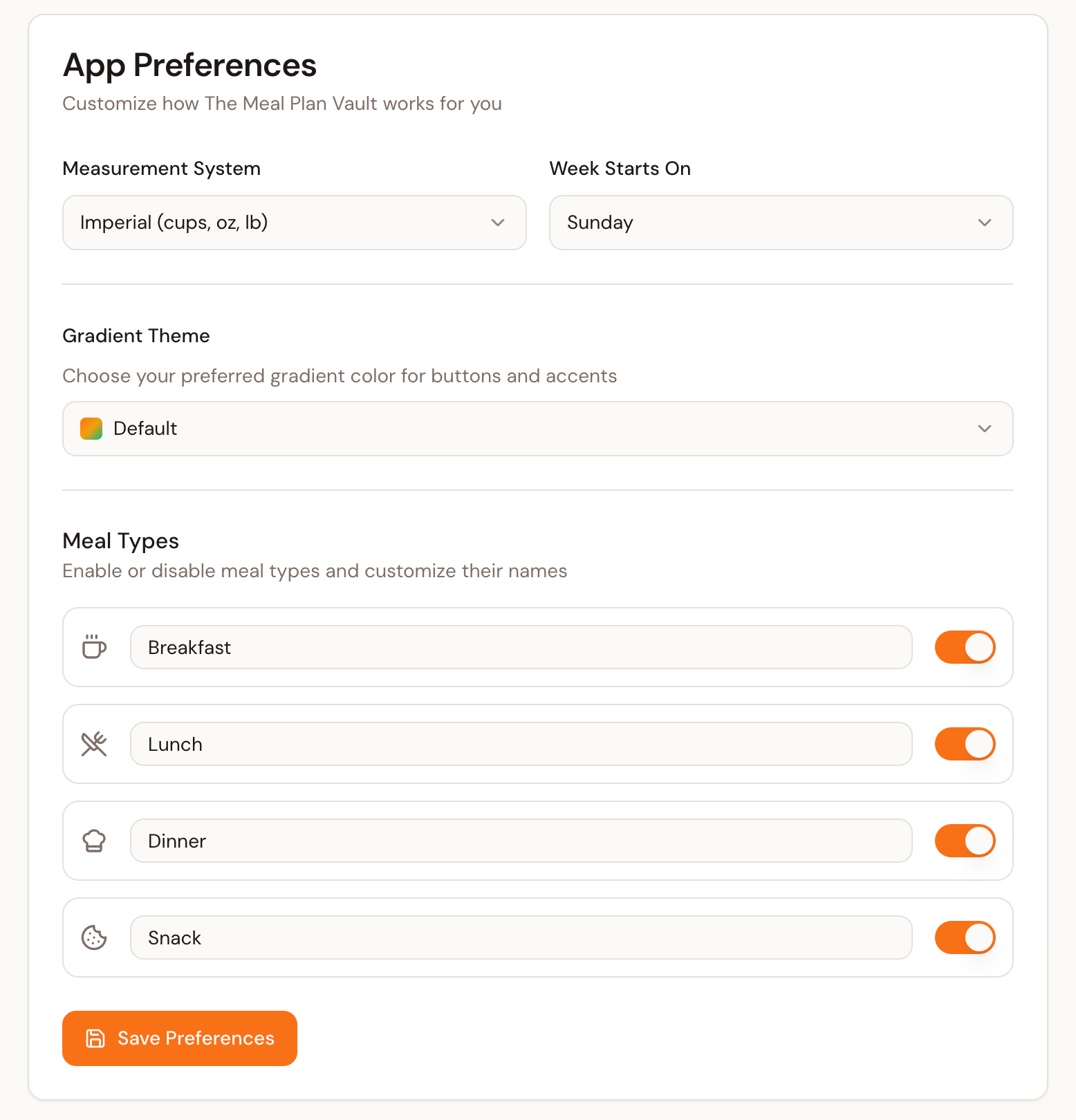
You can customize these in Settings → Preferences → Meal Types.
Adding Recipes to Your Meal Plan
Method 1: Click to Add
Click on any empty meal slot
A recipe selector will appear
Search or browse your recipes
Click a recipe to add it
The recipe appears in that meal slot
(Optional) Type in a manual meal like “Leftovers” instead of selecting a recipe under “Quick Add Custom Meal”
Method 2: Drag and Drop
Click and hold the recipe
Drag it to the desired meal slot
Release to drop it in place
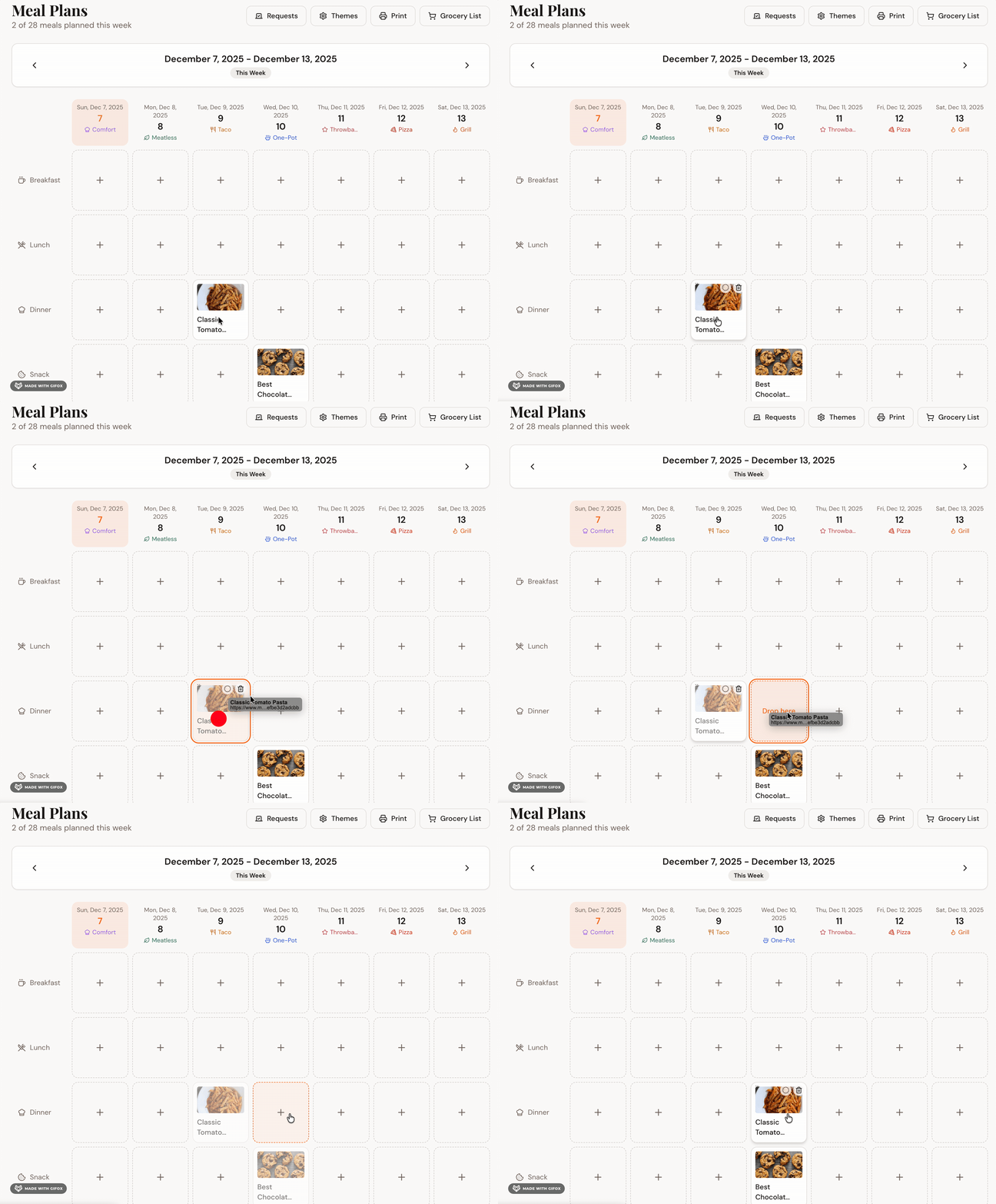
Tip: Drag-and-drop works best on desktop. On mobile, use the click method.
Method 3: Quick Add from Recipe Page
Open any recipe
Click "Add to Meal Plan"
Managing Your Meal Plan
Moving Recipes
Drag to Different Day - Click and drag a recipe card to a different day
Drag to Different Meal - Move recipes between breakfast, lunch, and dinner
Click to Replace - Click a filled slot to replace the recipe
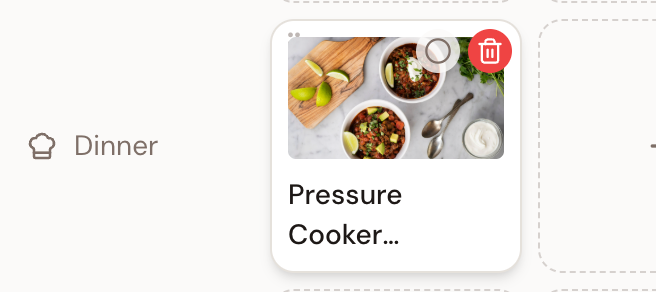
Removing Recipes
Click the Trash Button - Hover over a recipe card and click the trash icon
Viewing Recipe Details
Click the Recipe Card - Opens the full recipe page
Hover for Quick Info - See prep time and servings on hover
Planning Multiple Weeks
Navigating Weeks
Previous Week - Click the left arrow or "Previous Week"
Next Week - Click the right arrow or "Next Week"
Jump to Date - Use the date picker to jump to a specific week
Today - Click "Today" to return to the current week
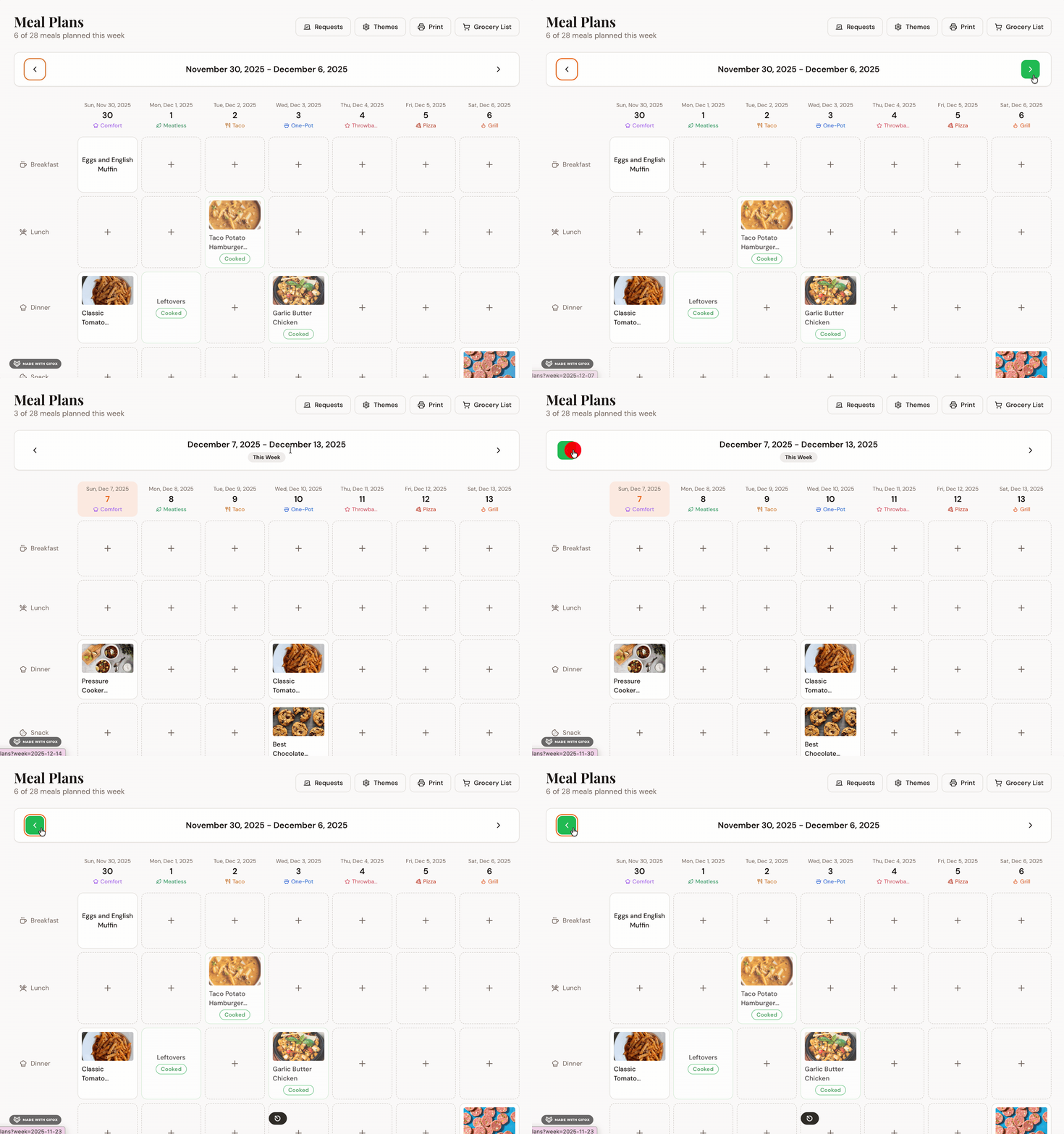
Planning Ahead
You can plan as far ahead as you want:
Plan the entire month
Plan week by week
Plan just a few days ahead
Tip: Many users plan one week at a time, typically on Sundays.
Customizing Your Meal Plan
Custom Meal Types
Go to Settings → Preferences → Meal Types to:
Add custom meal names (e.g., "Brunch", "Dessert", "Appetizer")
Disable meal types you don't use
Week Start Day
Choose whether your week starts on:
Sunday (default) - Most common
Monday - Some prefer this
Change in Settings → Preferences → Week Starts On.
Meal Planning Strategies
Start Simple
For your first week:
Plan just 3-4 dinners to get comfortable
Use recipes you already know
Don't worry about breakfast and lunch initially
Build a Routine
Sunday Planning - Set aside 15-20 minutes each Sunday
Check Your Calendar - Account for busy nights
Leftovers - Plan meals that make great leftovers
Balance Your Week
Mix It Up - Vary cuisines and cooking times
Quick Meals - Plan quick meals for busy nights
Weekend Cooking - Save longer recipes for weekends
Using Meal Requests
Requesting Meals
Household members can request specific meals:
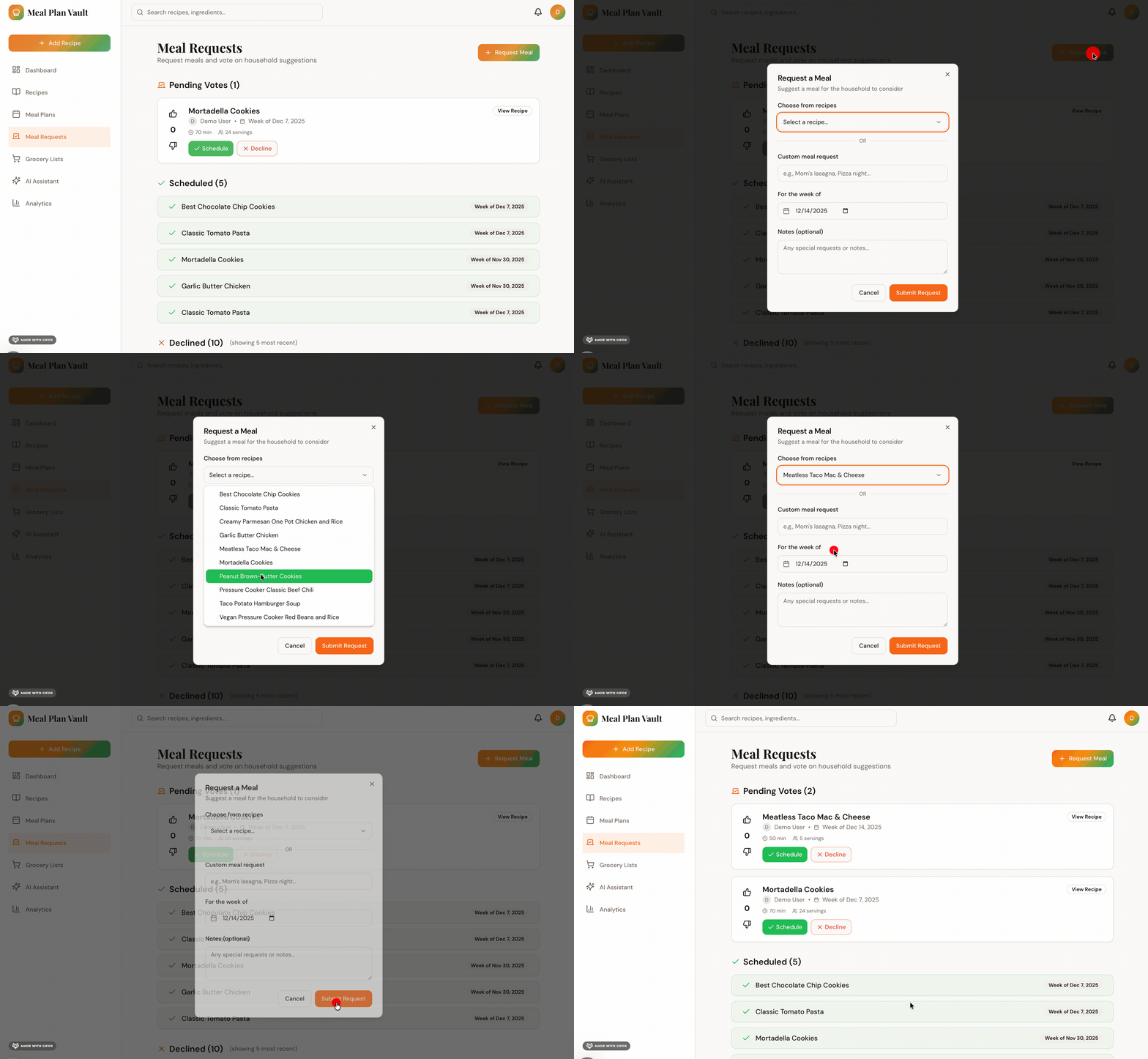
Go to Meal Plans → Requests
Click "Request a Meal"
Select a recipe or enter a custom meal name
Choose the week you want it
Submit the request
Responding to Requests
View pending requests on your dashboard
Click "Schedule" to add it to your meal plan
Or click "Dismiss" if you can't accommodate it
Tip: Meal requests help coordinate with your household without constant communication.
Tips & Best Practices
Planning Efficiently
Batch Similar Tasks - Plan all meals for the week at once
Use Favorites - Keep a list of go-to recipes
Plan Around Sales - Check grocery store ads before planning
Reducing Food Waste
Plan Leftovers - Intentionally plan meals that make leftovers
Use Similar Ingredients - Plan meals that share ingredients
Check Your Pantry - Plan meals using what you already have
Saving Time
Create Templates - Save common meal combinations as templates
Repeat Favorites - Don't be afraid to repeat meals you love
Prep Ahead - Plan meals that can be prepped in advance
Common Issues
"My meal plan isn't saving"
Solution:
Check your internet connection
Refresh the page
Make sure you're logged in
Try saving again
"I can't see all my recipes"
Solution:
Use the search bar to find specific recipes
Check that you're looking in the right household
Make sure recipes aren't archived
"The calendar looks wrong"
Solution:
Check your week start day setting (Monday vs. Sunday)
Refresh the page
Clear your browser cache if issues persist
Next Steps
Now that you can create meal plans, try:
Generating Grocery Lists - Create shopping lists from your meal plans
Meal Requests - Learn about requesting and scheduling meals
Household Voting - Vote on meal options with your household
Still Need Help?
Troubleshooting Guide
Related Articles:
Importing Recipes
Generating Grocery Lists
Meal Requests
Household Collaboration